OPEN-SOURCE SCRIPT
Обновлено Custom Text Display
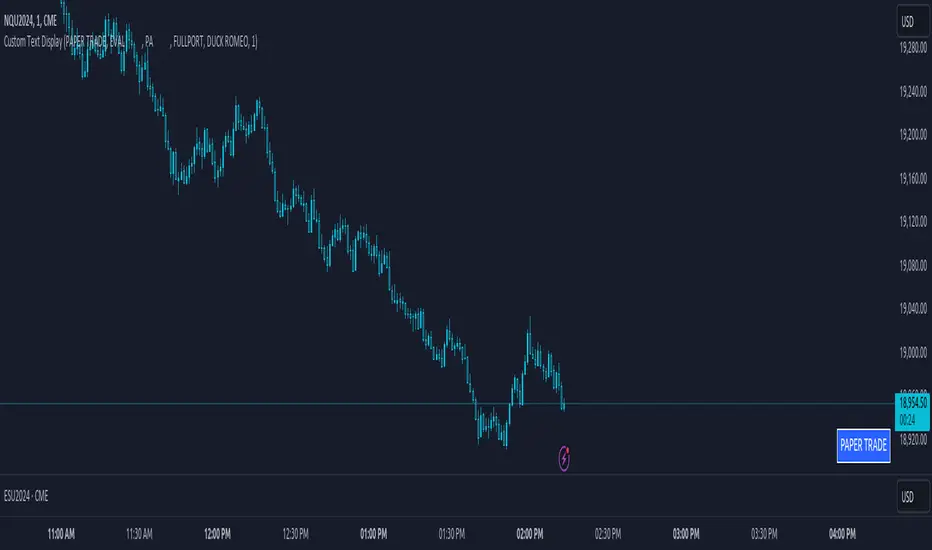
The "Custom Text Display" indicator allows users to display customizable text in a fixed position in the bottom-right corner of their chart. Each text entry can have its own color, which can be set in the indicator's settings. Follow these steps to set up and use the indicator effectively:
Adding the Indicator to Your Chart:
Apply the "Custom Text Display" indicator to your chart from the indicators list.
Configuring Text and Colors:
Open the settings for the indicator.
Enter the desired text for each of the five text fields labeled "Text 1", "Text 2", etc.
Choose a color for each text entry using the color pickers labeled "Color 1", "Color 2", etc.
Selecting the Active Text:
In the indicator settings, find the "Select Active Text" dropdown menu.
This menu offers six options: "0" (None), "1" (Text 1), "2" (Text 2), "3" (Text 3), "4" (Text 4), and "5" (Text 5).
Select the number corresponding to the text you want to activate. Only one text can be active at a time.
Viewing the Active Text on the Chart:
The selected active text will be displayed in the bottom-right corner of the chart with the corresponding background color.
If no text is selected (option "0"), no text will be displayed.
Adding the Indicator to Your Chart:
Apply the "Custom Text Display" indicator to your chart from the indicators list.
Configuring Text and Colors:
Open the settings for the indicator.
Enter the desired text for each of the five text fields labeled "Text 1", "Text 2", etc.
Choose a color for each text entry using the color pickers labeled "Color 1", "Color 2", etc.
Selecting the Active Text:
In the indicator settings, find the "Select Active Text" dropdown menu.
This menu offers six options: "0" (None), "1" (Text 1), "2" (Text 2), "3" (Text 3), "4" (Text 4), and "5" (Text 5).
Select the number corresponding to the text you want to activate. Only one text can be active at a time.
Viewing the Active Text on the Chart:
The selected active text will be displayed in the bottom-right corner of the chart with the corresponding background color.
If no text is selected (option "0"), no text will be displayed.
Информация о релизе
The "Custom Text Display" indicator allows users to display customizable text in a fixed position in the bottom-right corner of their chart. Each text entry can have its own color, which can be set in the indicator's settings. Follow these steps to set up and use the indicator effectively:Adding the Indicator to Your Chart:
Apply the "Custom Text Display" indicator to your chart from the indicators list.
Configuring Text and Colors:
Open the settings for the indicator.
Enter the desired text for each of the five text fields labeled "Text 1", "Text 2", etc.
Choose a color for each text entry using the color pickers labeled "Color 1", "Color 2", etc.
Selecting the Active Text:
In the indicator settings, find the "Select Active Text" dropdown menu.
This menu offers six options: "0" (None), "1" (Text 1), "2" (Text 2), "3" (Text 3), "4" (Text 4), and "5" (Text 5).
Select the number corresponding to the text you want to activate. Only one text can be active at a time.
Viewing the Active Text on the Chart:
The selected active text will be displayed in the bottom-right corner of the chart with the corresponding background color.
If no text is selected (option "0"), no text will be displayed.
Информация о релизе
The "Custom Text Display" indicator allows users to display customizable text in a fixed position in the bottom-right corner of their chart. Each text entry can have its own color, which can be set in the indicator's settings. Follow these steps to set up and use the indicator effectively:Adding the Indicator to Your Chart:
Apply the "Custom Text Display" indicator to your chart from the indicators list.
Configuring Text and Colors:
Open the settings for the indicator.
Enter the desired text for each of the five text fields labeled "Text 1", "Text 2", etc.
Choose a color for each text entry using the color pickers labeled "Color 1", "Color 2", etc.
Selecting the Active Text:
In the indicator settings, find the "Select Active Text" dropdown menu.
This menu offers six options: "0" (None), "1" (Text 1), "2" (Text 2), "3" (Text 3), "4" (Text 4), and "5" (Text 5).
Select the number corresponding to the text you want to activate. Only one text can be active at a time.
Viewing the Active Text on the Chart:
The selected active text will be displayed in the bottom-right corner of the chart with the corresponding background color.
If no text is selected (option "0"), no text will be displayed.
Информация о релизе
The "Custom Text Display" indicator allows users to display customizable text in a fixed position in the bottom-right corner of their chart. Each text entry can have its own color, which can be set in the indicator's settings. Follow these steps to set up and use the indicator effectively:Adding the Indicator to Your Chart:
Apply the "Custom Text Display" indicator to your chart from the indicators list.
Configuring Text and Colors:
Open the settings for the indicator.
Enter the desired text for each of the five text fields labeled "Text 1", "Text 2", etc.
Choose a color for each text entry using the color pickers labeled "Color 1", "Color 2", etc.
Selecting the Active Text:
In the indicator settings, find the "Select Active Text" dropdown menu.
This menu offers six options: "0" (None), "1" (Text 1), "2" (Text 2), "3" (Text 3), "4" (Text 4), and "5" (Text 5).
Select the number corresponding to the text you want to activate. Only one text can be active at a time.
Viewing the Active Text on the Chart:
The selected active text will be displayed in the bottom-right corner of the chart with the corresponding background color.
If no text is selected (option "0"), no text will be displayed.
Информация о релизе
The "Custom Text Display" indicator allows users to display customizable text in a fixed position in the bottom-right corner of their chart. Each text entry can have its own color, which can be set in the indicator's settings. Follow these steps to set up and use the indicator effectively:Adding the Indicator to Your Chart:
Apply the "Custom Text Display" indicator to your chart from the indicators list.
Configuring Text and Colors:
Open the settings for the indicator.
Enter the desired text for each of the five text fields labeled "Text 1", "Text 2", etc.
Choose a color for each text entry using the color pickers labeled "Color 1", "Color 2", etc.
Selecting the Active Text:
In the indicator settings, find the "Select Active Text" dropdown menu.
This menu offers six options: "0" (None), "1" (Text 1), "2" (Text 2), "3" (Text 3), "4" (Text 4), and "5" (Text 5).
Select the number corresponding to the text you want to activate. Only one text can be active at a time.
Viewing the Active Text on the Chart:
The selected active text will be displayed in the bottom-right corner of the chart with the corresponding background color.
If no text is selected (option "0"), no text will be displayed.
Информация о релизе
The "Custom Text Display" indicator allows users to display customizable text in a fixed position in the bottom-right corner of their chart. Each text entry can have its own color, which can be set in the indicator's settings. Follow these steps to set up and use the indicator effectively:Adding the Indicator to Your Chart:
Apply the "Custom Text Display" indicator to your chart from the indicators list.
Configuring Text and Colors:
Open the settings for the indicator.
Enter the desired text for each of the five text fields labeled "Text 1", "Text 2", etc.
Choose a color for each text entry using the color pickers labeled "Color 1", "Color 2", etc.
Selecting the Active Text:
In the indicator settings, find the "Select Active Text" dropdown menu.
This menu offers six options: "0" (None), "1" (Text 1), "2" (Text 2), "3" (Text 3), "4" (Text 4), and "5" (Text 5).
Select the number corresponding to the text you want to activate. Only one text can be active at a time.
Viewing the Active Text on the Chart:
The selected active text will be displayed in the bottom-right corner of the chart with the corresponding background color.
If no text is selected (option "0"), no text will be displayed.
Скрипт с открытым кодом
В истинном духе TradingView, создатель этого скрипта сделал его открытым исходным кодом, чтобы трейдеры могли проверить и убедиться в его функциональности. Браво автору! Вы можете использовать его бесплатно, но помните, что перепубликация кода подчиняется нашим Правилам поведения.

Отказ от ответственности
Информация и публикации не предназначены для предоставления и не являются финансовыми, инвестиционными, торговыми или другими видами советов или рекомендаций, предоставленных или одобренных TradingView. Подробнее читайте в Условиях использования.
Скрипт с открытым кодом
В истинном духе TradingView, создатель этого скрипта сделал его открытым исходным кодом, чтобы трейдеры могли проверить и убедиться в его функциональности. Браво автору! Вы можете использовать его бесплатно, но помните, что перепубликация кода подчиняется нашим Правилам поведения.
Отказ от ответственности
Информация и публикации не предназначены для предоставления и не являются финансовыми, инвестиционными, торговыми или другими видами советов или рекомендаций, предоставленных или одобренных TradingView. Подробнее читайте в Условиях использования.