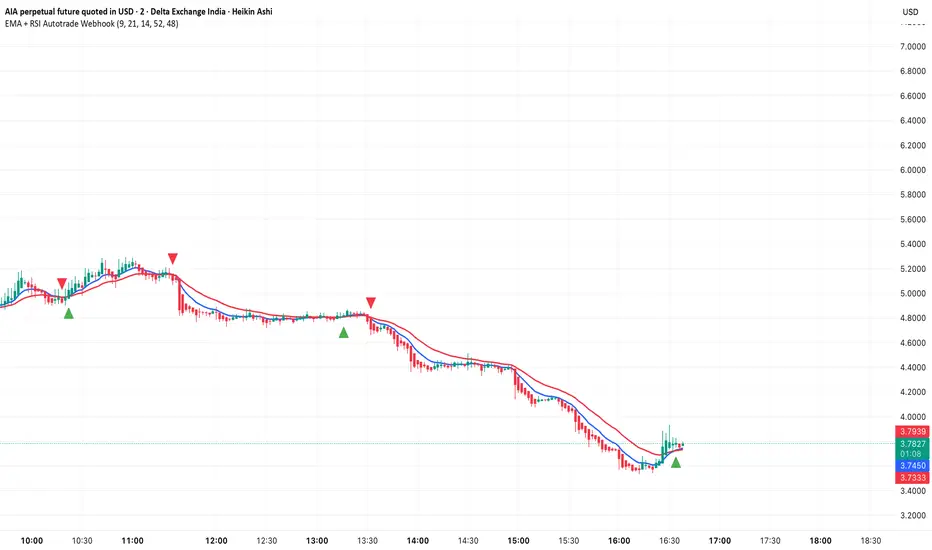
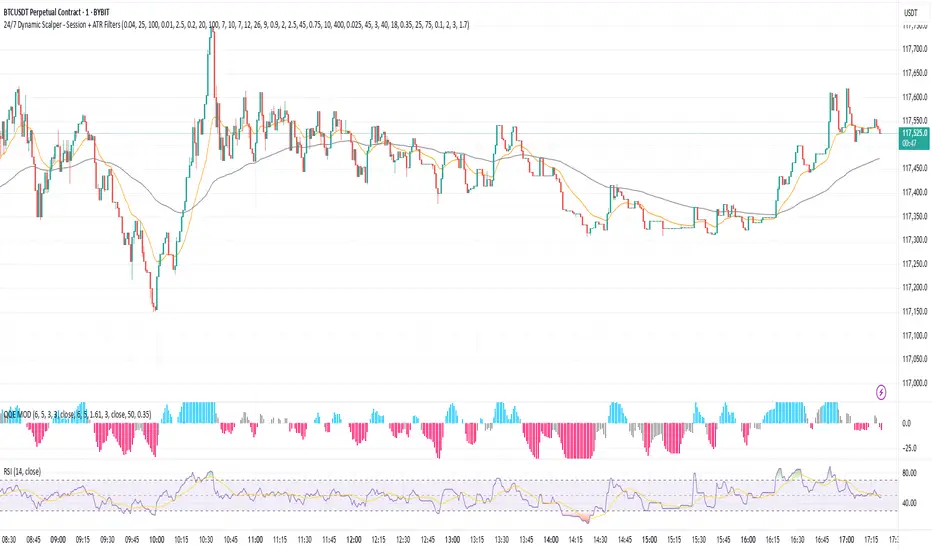
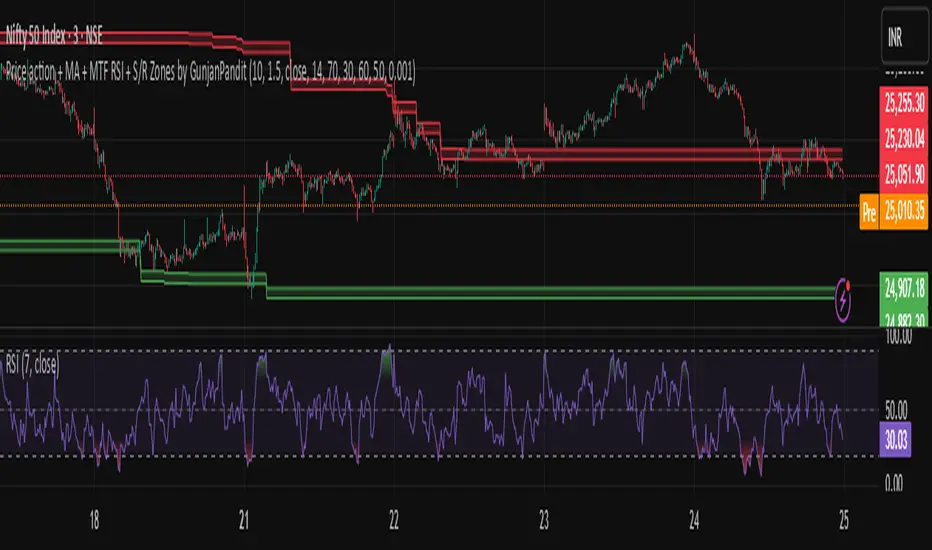
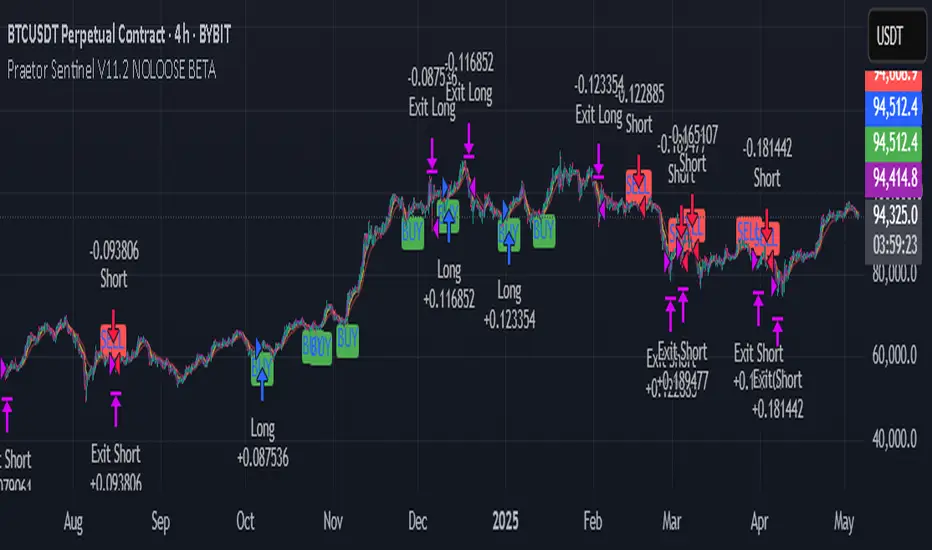
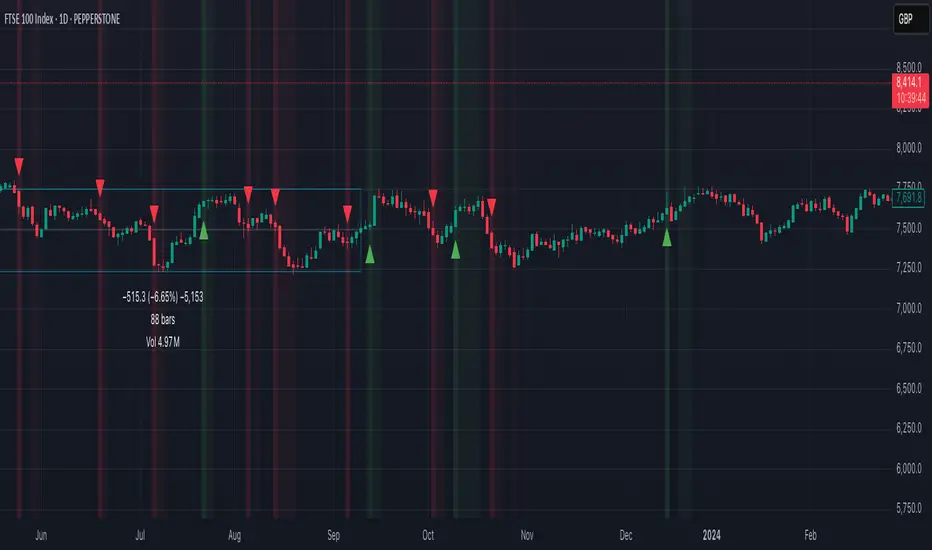
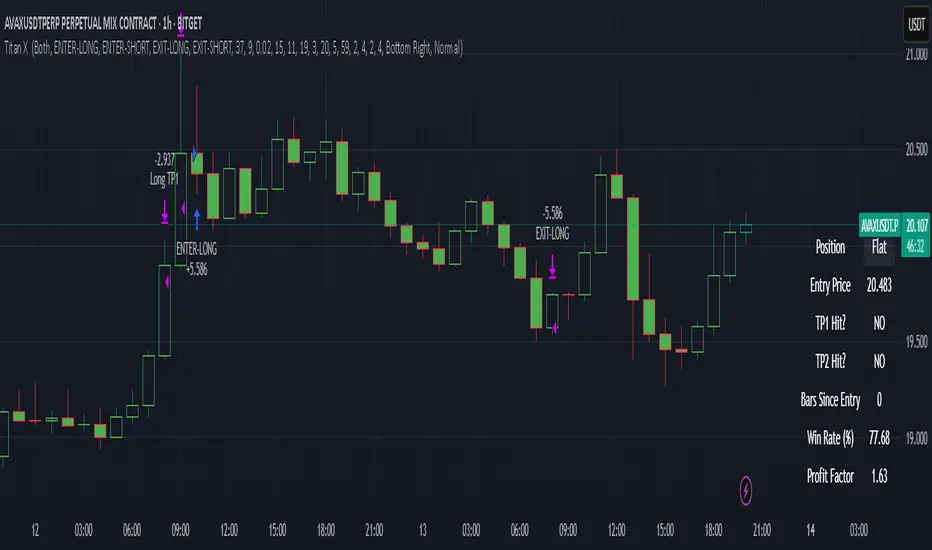
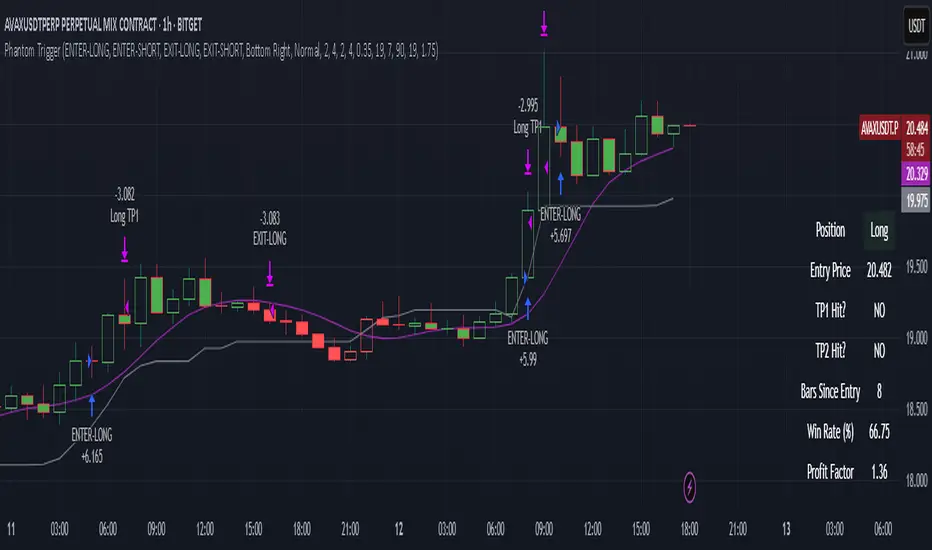
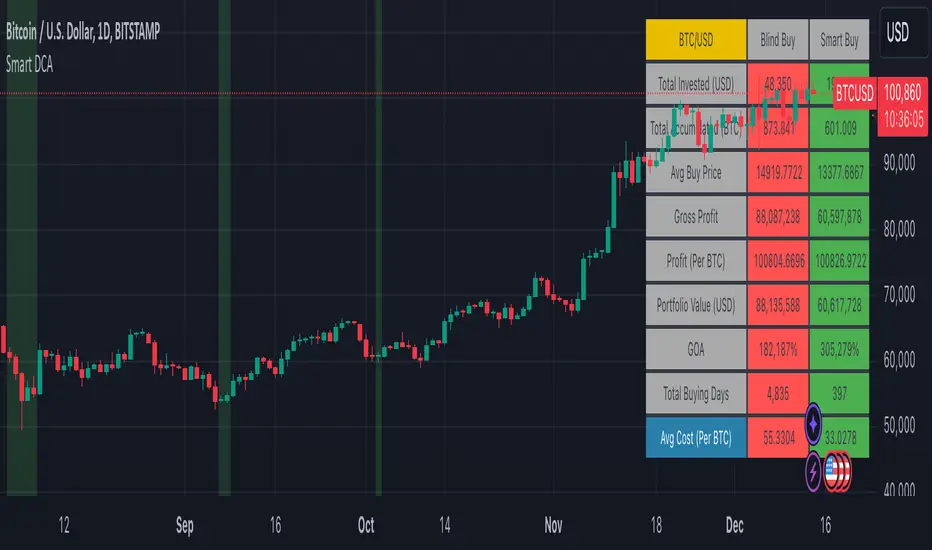
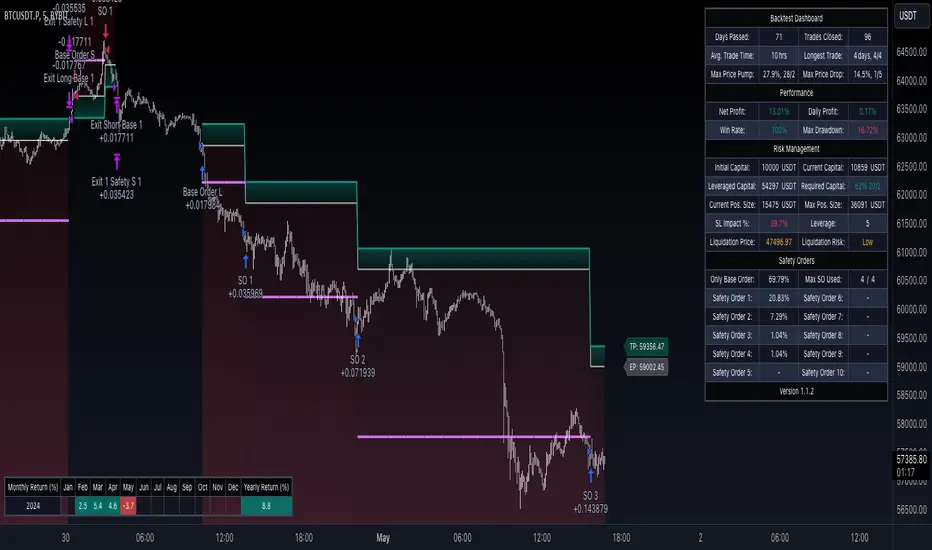
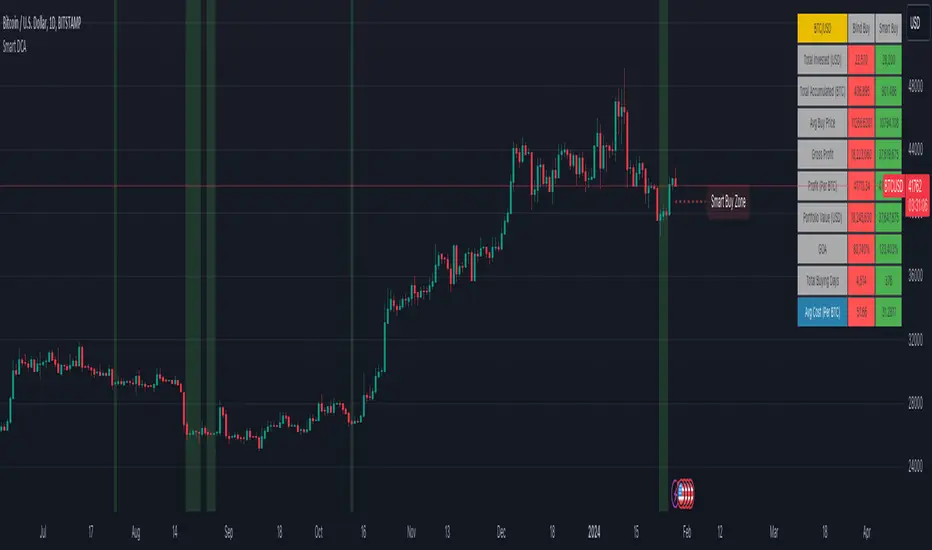
Master Analytics Dashboard Pro V6Works in any market including Crypto and Stocks
1. Navigating the Settings (Inputs)
Click the "Gear" icon next to the indicator name on your chart to open the settings. You will see several sections with (i) icons—hover over these for helpful tips.
Dashboard Aesthetics: Use this to move the dashboard (e.g., to "Bottom Left") or change the background transparency.
Dashboard Data Toggles: What to display on dashboard.
Technical Settings: This is where you adjust the UT Bot Key and RSI lengths/MACD. For beginners, the default settings are usually best.
SMA/EMA and VWAP Lines: Can add up to 5 SMA and 3 EMA lines and fully customizable. By default SMA 610 ( for lowest bottom) and classical EMA 9, 20, 200 and VWAP will display.
MTF Timeframes: You can choose which timeframes the dashboard monitors. By default, it tracks from 5m up to 1D to show you the "Big Picture" trend.
2. Understanding the Dashboard & Ribbon
The dashboard acts as your "Control Center," aggregating data so you don't have to switch charts.
Trend Ribbon (Cloud): When the cloud is Green, the immediate trend is bullish. When it is Red, the trend is bearish.
Ribbon Trend (MTF): This row shows if the ribbon is bullish or bearish across other timeframes.
Confluence %: This is your most important number. A score of 80% or higher means almost all indicators (MACD, RSI, Trends) are aligned in one direction.
3. Setting Up Individual Alerts
One of the most powerful features of this script is the ability to trigger alerts individually.
Select Your Triggers: In the indicator settings under "7. Alert Thresholds," check only the boxes you want (e.g., Bullish Ribbon Flip). By default, all other alerts are unchecked to prevent spam.
Create the Alert: Click the "Alert" icon (Alarm Clock) on the TradingView sidebar.
Condition: Select "Analytics" and then select "Any alert() function call".
Frequency: Choose "Once Per Bar Close" to ensure the signal is confirmed before you get a notification.
How to Trade:
🟢 The Bullish "Perfect Trade" Checklist
To confirm a high-probability Long entry, aim for as many of these "Green" signals as possible:
Trend Ribbon Flip: The primary ribbon cloud on your chart has turned Green, and price is trading above it.
Confluence Score ≥ 80%: The dashboard shows a bullish confluence of 80% or higher, indicating that RSI, MACD, and Trends are aligned.
MTF Alignment: At least 4 out of the 5 timeframes (e.g., 15m, 1h, 4h, 1D) show a BULL status.
Trend Status: The "Trend Source" row (EMA 200 or SMA 200) reads BULLISH, confirming the long-term trend is in your favor.
UT Bot Confirmation: A tiny BUY label has appeared on the chart (confirmed on bar close).
RSI Momentum: The RSI is above its Moving Average (TRUE) but has not yet crossed the Overbought (80) threshold. Look out for Yellow caution to indicate RSI is OB/OS (Above the candle is OB, below the candle is OS.
🔴 The Bearish "Perfect Trade" Checklist
To confirm a high-probability Short entry, look for these "Red" signals:
Trend Ribbon Flip: The ribbon cloud has turned Red, and price is trading below the basis line.
Confluence Score ≤ 20% (80% Bearish): The aggregate signal shows strong bearish pressure.
MTF Alignment: The higher timeframes (TF 4 and TF 5) specifically show a BEAR status, ensuring you aren't "fighting the trend".
Trend Status: Price is trading below the 200 EMA/SMA, showing the dashboard Trend Status as BEARISH.
UT Bot Confirmation: A tiny SELL label has appeared on the chart.
MACD State: The MACD Fast line is below the Signal line (FALSE on the "MACD > Sig" row).
Индикатор Pine Script®